Using the PBClinic System to automatically notify patients of upcoming appointments using Text Messaging to their cell phones requires having a User Account
automatically logged on when a restart of the computer occurs. Here are the steps
Login as Administator
Create a user Logon for Task Scheduler - TaskSchedAdmin
Logoff as Administrator
Login as TaskSchedAdmin
How to Automatically Launch a Program on Startup
First, download a Microsoft provided program called Autologon.exe
After extracting the .zip, run Autologon.exe and enter the credentials for the Windows user you are currently using (for example, TaskSchedAdmin). Click Enable.
Now, the TaskSchedAdmin user will log in automatically after the system is rebooted.
After system reboot
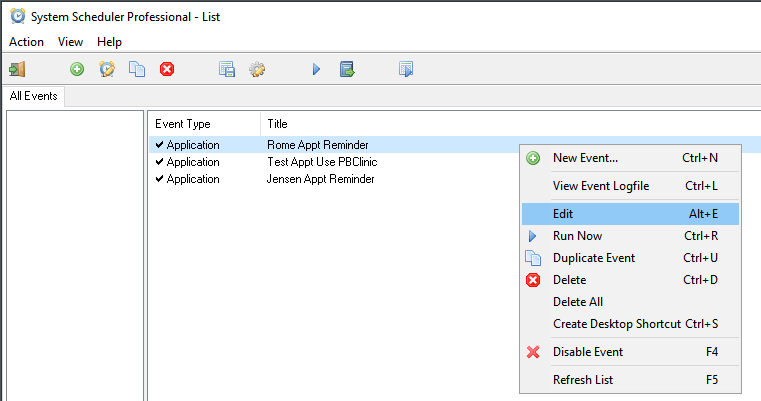
Open System Scheduler Professional (add on replaces Windows Scheduler)
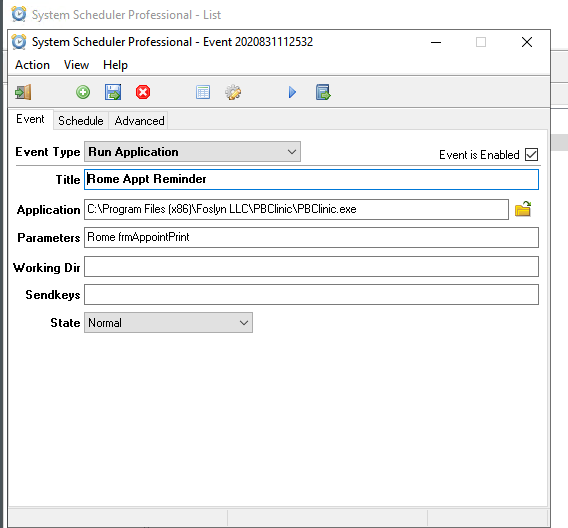
Add/Edit Clinic Appt Reminder\Advanced
Add/Change Logged In User from Administrator to TaskSchedAdmin